
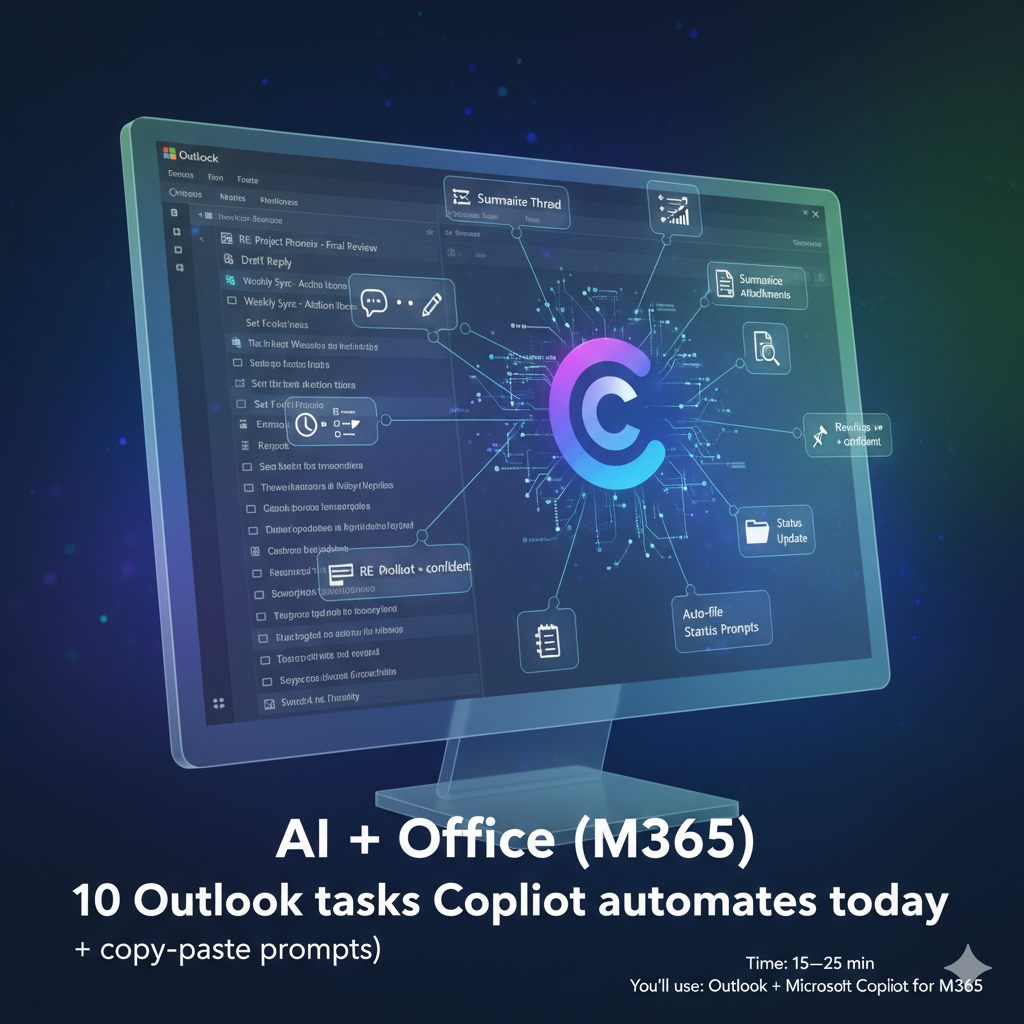
10 Outlook tasks Copilot automates today (+ copy-paste prompts)
Time: 15–25 min • Tools: Outlook + Copilot • Updated: 09/11/2025
Why this matters
If your inbox sets the pace of your day, Copilot can do the boring pieces: summarize threads, draft replies in your voice, extract tasks, and prep follow-ups.
What you’ll learn
- Summarize long threads, pull dates and to-dos
- Draft replies with tone control
- Auto-file messages + schedule reminders
- Create follow-ups and tasks in To Do/Planner
Prerequisites
- Copilot for M365 enabled by your tenant admin
- Outlook connected to the same M365 account
Step-by-step
1) TL;DR a long thread
Open the thread → Copilot → Summarize.
Prompt:
“Summarize key decisions, dates, and owner names. Output bullets under Decisions, Dates, Owners.”
2) Draft a reply in your voice
Reply → Copilot → Draft with Copilot.
Prompt:
“Reply briefly, supportive tone. Confirm we’ll send the cost estimate by Friday 5pm. Ask if they need a redlined version.”
3) Extract action items
Prompt:
“From this conversation, list action items with owners and due dates. Format as a table I can paste into Planner.”
4) Create a follow-up reminder
After sending, click Follow-up → Add Reminder (or flag) → choose date/time.
Pair with To Do: Message → More → Create task.
5) Re-write for tone
Prompt:
“Rewrite this draft more concise and confident, 120 words max, keep the commitment and date.”
6) Summarize attachments (Word/PowerPoint)
Open file in the preview → Copilot → Summarize. Ask for slides to keep/merge.
7) Turn an email into a meeting brief
Prompt:
“Create a 5-bullet meeting brief: goal, agenda, decision needed, open risks, attendees.”
8) Create a status update
Prompt:
“From the last 10 emails from <client>, draft a weekly status: wins, blockers, next steps.”
9) Auto-file routine emails
Rules → Create rule: move newsletters/alerts into folders; review weekly.
10) Save prompt snippets
Pin your best prompts in Outlook MyDay / Sticky Notes for reuse.
QA / Gotchas
- Copilot sometimes invents due dates. Always verify against the thread.
- Keep replies under ~150 words for best clarity.
- Don’t include confidential client info when you don’t need to.
What to do next
Use the same prompts in Teams to recap meetings and push tasks to Planner automatically.